




TL;DR:
- Regular testing ensures alarm devices reliably send emergency alerts to contacts.
- Prepare devices, contacts, and network before conducting monthly tests for accuracy.
- Combining technology with human check-ins provides layered senior safety and peace of mind.
An alarm button that fails silently is far more dangerous than one that never existed. For older adults living independently, a working alarm button is the difference between getting help fast and waiting hours on the floor after a fall. Families feel that worry every single day. The good news is that testing your alarm button takes only a few minutes, and doing it regularly can prevent a malfunction from going unnoticed. This guide walks you through every step, from preparation to verification, so you and your loved ones can stay confident that help is always one press away.
Table of Contents
- Understanding alarm buttons and their role
- What you need to test an alarm button
- Step-by-step guide to testing an alarm button
- Troubleshooting and common mistakes
- Verifying outcomes and ensuring ongoing safety
- Our perspective: Beyond routine testing, what truly keeps seniors safe
- Find the best alarm solutions for seniors
- Frequently asked questions
Key Takeaways
| Point | Details |
|---|---|
| Regular testing is essential | Monthly alarm button tests catch problems early and ensure seniors stay safe. |
| Prepare before testing | Verify device power, contacts, and network before each test for reliable performance. |
| Document and review results | Keep records and assess test outcomes to maintain alarm reliability over time. |
| Family involvement boosts safety | Testing with family or caregivers ensures emergency alerts work and provides confidence. |
Understanding alarm buttons and their role
An alarm button is a small, wearable device that lets a senior call for help instantly. One press sends an alert to family members, caregivers, or emergency contacts. These devices come in several forms: wristbands, pendants worn around the neck, and smartwatches with a built-in SOS button. Some also include automatic fall detection, which triggers an alert even if the user cannot press the button themselves.
Alarm buttons are essential safety devices for seniors who live alone or spend long stretches of time without direct supervision. They provide a direct line to trusted contacts without requiring a phone call or complicated steps. For someone with limited mobility or early cognitive decline, that simplicity is everything.
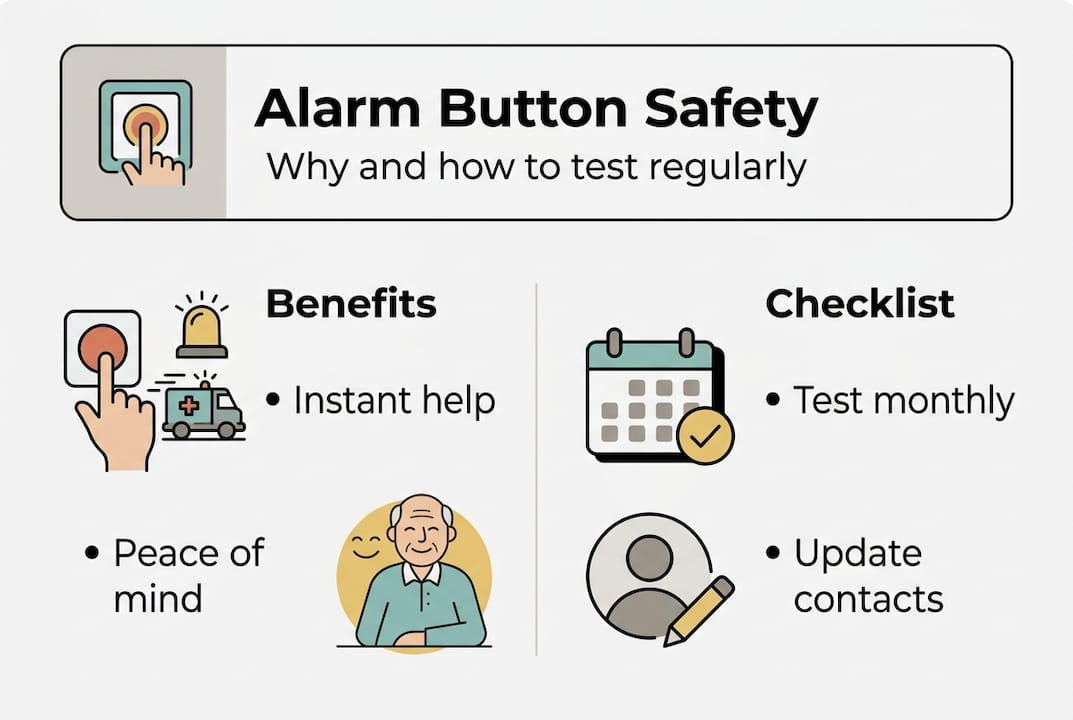
Regular testing matters because devices can fail without any visible sign. A drained battery, a lost network connection, or an outdated contact list can all prevent an alert from reaching anyone. You would never know unless you tested it.
Here is what alarm buttons typically do:
- Send an SOS alert to pre-set emergency contacts
- Share real-time GPS location so family knows exactly where to go
- Enable two-way voice calls directly through the device
- Automatically detect falls and trigger alerts without user input
- Operate without a monthly subscription on many models
“A device that has never been tested is a device you cannot trust. Testing turns a piece of technology into genuine peace of mind.”
Pro Tip: Involve the senior in the testing process from the start. When they understand how the device works and have practiced pressing the button, they are far more likely to use it confidently in a real emergency.
Learning more about elderly protection through alarm buttons can help families choose the right device and set it up for maximum reliability.
Having established the importance, let’s dive into what you’ll need to perform a proper test.
What you need to test an alarm button
Before pressing anything, a little preparation goes a long way. Preparation is key for safe and effective testing, and skipping this step is one of the most common reasons tests fail or cause unnecessary panic.
Start by gathering everything listed below. Different device types have slightly different requirements, so use this table as your starting checklist.
| Device type | Battery check | Network needed | App or SIM required |
|---|---|---|---|
| Wristband alarm | Yes, charge fully | No (local sound only) | No |
| Pendant with GPS | Yes, charge fully | Yes (mobile data) | SIM card |
| Alarm smartwatch | Yes, charge fully | Yes (WiFi or mobile) | App + SIM |
| Fixed home alarm | Check power supply | Optional | Depends on model |
Here is what to have ready before you begin:
- The device itself, fully charged or with fresh batteries
- The instruction manual for your specific model
- A list of emergency contacts currently programmed into the device
- A stable WiFi or mobile network signal in the test area
- A family member or caregiver available to receive the test alert
- A notebook or phone to log the test result and date
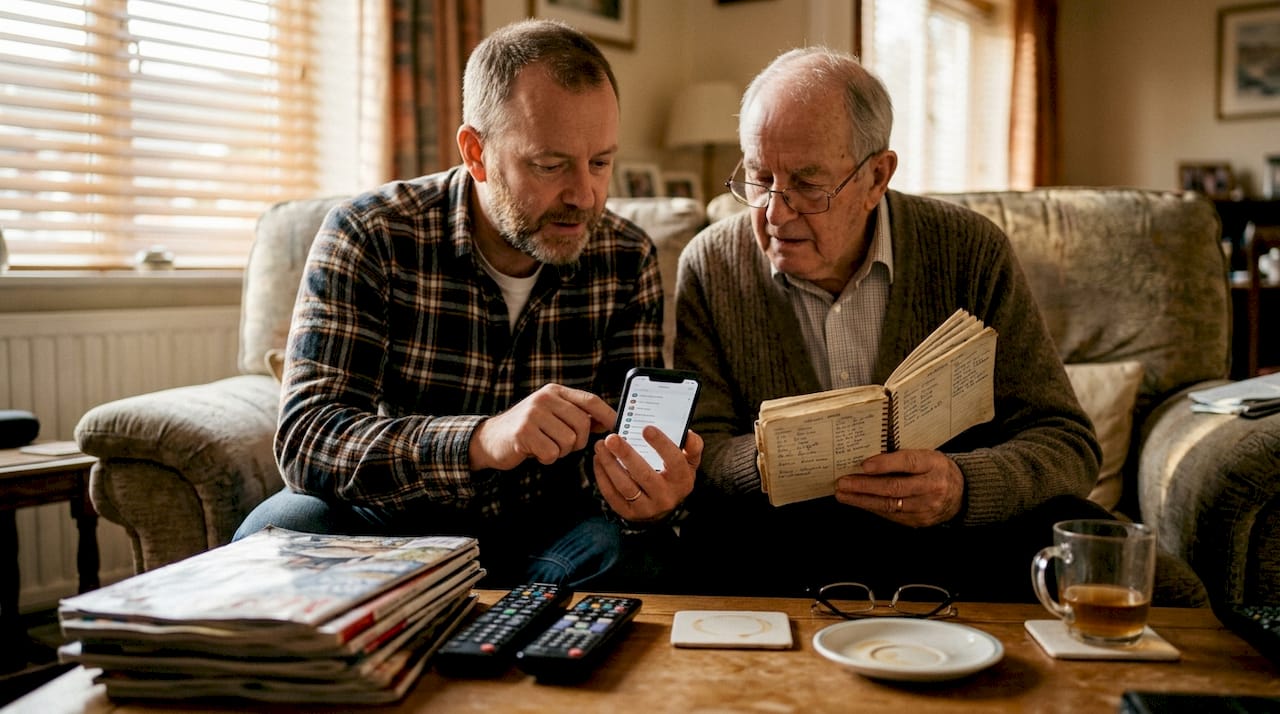
One detail many people overlook is verifying that the contact list in the device is current. Phone numbers change. People move. A contact who was set up two years ago may no longer be reachable at that number. Checking this before every test only takes a minute.
Pro Tip: Review the emergency button setup tips for your specific device before testing. Some models have a dedicated test mode that avoids triggering a full emergency response.
For devices that use a companion app, make sure the app is updated and notifications are enabled on the caregiver’s phone. A silenced app notification is just as useless as a dead battery. You can also review a personal alarm setup guide for step-by-step instructions on getting the device ready before your first test.
With your materials ready, it’s time to follow a clear process to test the alarm button.
Step-by-step guide to testing an alarm button
Testing procedures should be simple and repeatable for all types of devices. Follow these steps carefully each time you test.
- Notify your contacts first. Call or message the emergency contact who will receive the alert. Let them know a test is coming so they are not alarmed.
- Check the device status. Confirm the battery is charged and the device shows a network or signal indicator if applicable.
- Press the SOS button as instructed. Hold it for the required number of seconds. Some devices require a single press; others need a long press to prevent accidental triggers.
- Wait for confirmation. The device should beep, vibrate, or display a confirmation message. Note how long this takes.
- Confirm the alert reached your contact. Ask the family member or caregiver whether they received the call, text, or app notification.
- Check GPS accuracy if applicable. Ask your contact to confirm the location shown in the app matches where the senior actually is.
- Cancel the test alert. Follow the device instructions to end the test session and reset the device to standby mode.
- Log the result. Write down the date, outcome, and any issues noticed.
Here is a quick comparison of how testing differs across device types:
| Device type | Alert method | Confirmation step | GPS check needed |
|---|---|---|---|
| Wristband alarm | Sound or vibration | Listen for alarm | No |
| Pendant with GPS | Call or SMS to contact | Contact confirms receipt | Yes |
| Alarm smartwatch | App notification + call | App shows alert + contact confirms | Yes |
Pro Tip: Review the alarm watch interface guide if you are unsure how to navigate the settings on a smartwatch model. Clear menus make testing much faster.
Repeat this test every month. Set a recurring calendar reminder so it never gets skipped. Consistency is what makes testing genuinely protective rather than just a one-time check.
Even with the right steps, certain issues can arise. Here’s how to handle common problems.
Troubleshooting and common mistakes
Minor issues can prevent successful alarm transmission, and most of them are easy to fix once you know what to look for. The key is not to assume everything is fine just because the device looks normal.
The most common problems include:
- Low battery: Even if the device turns on, a low battery may not sustain a full alert transmission. Always charge before testing.
- Poor network signal: GPS and mobile-connected devices need a reliable signal. Testing in a basement or rural area with weak coverage can produce false failures.
- Outdated contact information: If a contact’s number has changed and the device still has the old number, alerts go nowhere.
- App notifications disabled: Caregivers sometimes update their phones and lose notification permissions for the alarm app without realizing it.
- Skipping the instruction manual: Each device has specific steps. Pressing the button the wrong way or for the wrong duration may not trigger anything.
“Always test your device in the same location where the senior spends most of their time. A strong signal in the living room does not guarantee coverage in the garden or bathroom.”
If the alert does not reach your contact during a test, work through this order: check battery level, check network signal, verify contact details, restart the device, and then consult the mobile alarm troubleshooting guide for your model.
Sensor-based features like fall detection can also drift over time. If the device has not detected a simulated fall correctly during a test, recalibrate it according to the manual or check the alarm device installation guide for recalibration steps.
Pro Tip: Keep a simple troubleshooting log. If the same issue appears two months in a row, it signals a hardware problem that needs professional attention, not just a quick fix.
Once tests and troubleshooting are complete, let’s look at how to verify successful results and maintain safety over time.
Verifying outcomes and ensuring ongoing safety
A test is only complete when you have confirmed the full chain: the button was pressed, the alert was sent, and the right person received it. Many families stop at step one and assume the rest worked. That assumption is where things go wrong.
Routine checks significantly increase reliability of safety devices. In fact, devices that are tested and maintained regularly are over 80% less likely to experience an unnoticed malfunction compared to untested ones.
Here is how to verify outcomes properly after each test:
- Ask the emergency contact to confirm the exact time they received the alert
- Check that the GPS location shown in the app was accurate within a reasonable range
- Confirm the two-way call feature worked if your device supports it
- Note the battery level after the test to track how quickly it drains
- Review the device’s alert history log if the model provides one
For ongoing safety, set a monthly schedule and stick to it. The best time to test is the same day each month, such as the first Sunday or the last Friday. Pair the test with another routine task so it becomes a habit.
Keep a written log that includes the date, who received the alert, any issues found, and what was done to fix them. This record is useful if you ever need to report a recurring problem to the device manufacturer or compare best alarm watch comparisons when considering an upgrade.
After technical steps, let’s consider the broader perspective on alarm testing and senior safety.
Our perspective: Beyond routine testing, what truly keeps seniors safe
Routine testing builds confidence, and that matters. But here is something most guides will not tell you: the technology is only as reliable as the human network around it.
We have seen families set up a perfect alarm button, test it once, and then never update the contact list again. Two years later, the primary contact has a new phone number. The device is technically working, but it is alerting no one.
The elderly alarm button revolution is real, and these devices genuinely save lives. But technology alone is not a safety plan. Pair every alarm button with regular neighbor check-ins, scheduled family calls, and at least two contacts programmed into the device. When one contact misses an alert, the second one catches it.
Real safety is layered. The device handles the instant response. The people around the senior handle everything else. Test the technology every month, but also test the human connections just as often.
Find the best alarm solutions for seniors
Now that you know how to test and maintain an alarm button, the next step is making sure the device itself is the right fit. Not all alarm buttons are created equal, and the features that matter most depend on the senior’s daily routine and risk level.
At KUUS, we offer a range of trusted wearable safety devices with no monthly subscription costs. Whether you need a simple alarm button with fall detection or a full-featured SOS alarm watch for seniors, our products are designed for easy daily use. You can also compare alarm watches for 2026 to find the best match for your loved one’s needs and lifestyle.
Frequently asked questions
How often should I test my alarm button?
Test your alarm button at least once a month to confirm it is working and that alerts reach the right contacts. Setting a recurring calendar reminder makes this easy to maintain.
What if my alarm button doesn’t send an alert?
First, check the battery level and network connection, then verify that contact details are current. If the problem continues, consult the mobile alarm troubleshooting steps in your device manual or contact support.
Can I test the alarm button without notifying my contacts?
Some devices offer a dedicated test mode that avoids triggering a full emergency response. Check your instruction manual, as manuals specify test modes for each model. If no test mode exists, always notify contacts before pressing the button.
Should family help with testing the alarm button?
Yes. Family participation is crucial for confirming that alerts arrive correctly and that everyone knows how to respond. It also reassures the senior that their support network is active and ready.
What features should I look for in a senior alarm button?
Prioritize easy one-press activation, reliable connectivity, and direct alerts to trusted contacts. Devices with reliable connectivity and direct alerts consistently perform best in real-world emergencies and are easier for seniors to use confidently.